A Path Is Not an ID
Google Drive remembers a folder by its identity, so renaming it changes nothing. Dropbox remembers a location, so moving it changes everything. The same archive feature behaves differently on the two providers, and the difference has never been a setting — it is what the two products believe a folder is.
Here is a small experiment that tells you more about a storage integration than any documentation will. Connect it, let it archive something, then go into the storage provider and rename the folder it was writing into. Archive something else. If the second document lands beside the first, the connector holds an identity. If it lands in a freshly created folder with the old name, the connector holds an address. Both are legitimate. They are not the same, and nobody tells you which you have.
Two ways to say where
Drive gives every folder an opaque id that never changes and has nothing to do with what the folder is called or where it sits. Ask Drive to put a file inside that id and it goes there, whatever anyone has done to the folder in the meantime.
Dropbox is a filesystem, and in a filesystem the name is the address. A file lives at a path, and a path is a sequence of names. Move the folder and the path is now the path of something else, or of nothing.
So the two connectors store different things. The Drive connection holds a folder id. The Dropbox connection holds a folder path — a string you can read and type. That is the whole difference, and everything below is a consequence of it.
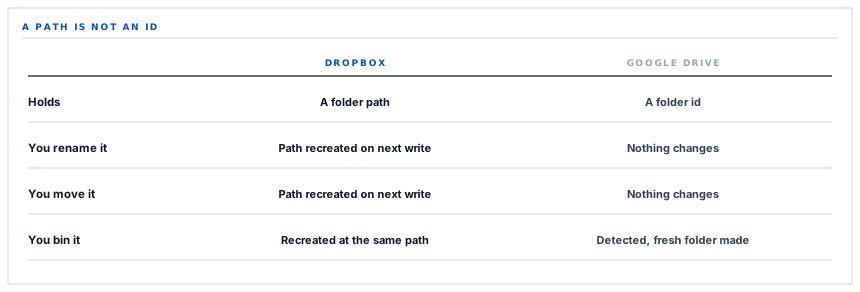
| If somebody in your team... | Google Drive | Dropbox |
|---|---|---|
| Renames the archive folder | Nothing changes. New files land in the renamed folder. | The old path is gone; a new folder with the old name is created on the next upload. |
| Moves it inside another folder | Nothing changes. The id still resolves. | Same as a rename — the configured path no longer points at it. |
| Puts it in the bin | Detected, and a fresh folder is created rather than written into a binned one. | The path is empty, so the next upload recreates the folder there. |
| Shares it with an accountant | Nothing changes either way. | Nothing changes either way. |
Neither behaviour is a bug. The bug is assuming the one you have is the one you assumed.
Why the Dropbox connector needs no folder step at all
There is a whole piece of machinery in the Drive connector that simply does not exist on the Dropbox side, and its absence is the interesting part.
Drive has to create the archive folder, remember its id, verify that id still resolves, find or create a subfolder for each document type, and cache those subfolder ids for the duration of a run so a batch of six hundred invoices does not ask the same question six hundred times.
Dropbox needs none of it. Upload to a path whose folders do not exist and Dropbox creates them on the way past. So the connector composes a path — your root, a folder named for the document type, the document number as the filename — and uploads. The folders appear. There is no id to store, nothing to verify, and nothing worth caching.
That is worth sitting with for a second, because it inverts the usual instinct. The provider with the simpler model produced the smaller connector, and the smaller connector is the one whose behaviour is easier to predict from outside. You can work out where a file will land on Dropbox by reading the settings screen. On Drive you can work it out by opening Drive.
A path in a URL has a second problem
The third provider in this family, OneDrive, is also path-addressed, but it puts the path inside the request URL rather than in a header. That introduces a wrinkle worth naming because it is a classic source of quiet corruption.
A document called PO-2026-0041 (revised).pdf contains a space and two brackets. Dropped raw into a URL, those characters mean things. Encoded naively — the whole path in one pass — the separating slashes get encoded too, and the file arrives with a name containing what should have been folders.
The connector encodes each segment of the path separately and rejoins them with real slashes, which is the only version of that operation that is correct. It is two lines, it looks like a formality, and it is the difference between a tidy folder tree and a flat list of files with slashes in their names.
Filenames are also cleaned to a safe alphabet before they get anywhere near a URL, so the awkward cases are rare. The encoding is there because rare is not never.
And the fourth model: no folders at all
Archiving to your own storage bucket looks like the same feature and rests on a different idea again. Object storage has no folders. What looks like a path is a single flat key, and the slashes in it are ordinary characters that the console draws as a tree because people expect one.
Practically that means there is nothing to create, nothing to move, and nothing to rename. A key either has an object at it or it does not. It also means the thing you cannot do is move your archive by dragging it, because there is nothing to drag — a re-prefix is a copy of every object and a delete of every original, and that is a job for your own tooling rather than for a connector.
What is in place, layer by layer
How each destination is addressed
Dropbox: a path you can read
A root folder you set, a folder named for the document type, and the document number as the filename. The connection stores the string, not an id.
Dropbox: folders made on the way past
Missing folders are created by the upload itself, so there is no folder-creation step, no stored id and nothing that can go stale.
Drive: an id that survives a rename
The archive folder is remembered by identity, so renaming, moving or sharing it in Drive leaves the connection working exactly as before.
Drive: subfolder lookups cached per run
The id of each type's subfolder is resolved once and reused for the rest of a batch, which is the difference between one lookup and several hundred.
OneDrive: per-segment URL encoding
Each folder and filename in the path is encoded separately and rejoined, so a space or a bracket in a document number cannot flatten the folder tree.
Object storage: a key, and a prefix you choose
A configurable prefix, then the document type, then the filename — one flat key, written privately, with no folder concept underneath it.
Filenames cleaned before use
Document numbers are reduced to a filesystem-safe alphabet on every provider, so the same name is valid on all four.
Root and prefix editable after connecting
Changing where new documents land is a setting rather than a reconnection, and it applies from the moment it is saved.
Changing a root or a prefix redirects new documents. Files already archived stay where they were written — no connector in this family moves an existing file.
Three positions held on purpose
- Each provider is addressed the way that provider works, rather than through an invented common abstraction. A single "folder" concept papered over all four would be wrong in a different way on each of them, and the wrongness would show up as behaviour nobody could explain from either side.
- Changing the destination redirects the future and leaves the past alone. Relocating an existing archive is a decision with real consequences for anyone who has bookmarked, shared or referenced those files, and it belongs in your hands rather than in a settings save.
- The path is shown in full on the settings screen rather than summarised. Somebody should be able to read where documents go without connecting to anything, because the person auditing that is usually not the person who set it up.
Five questions about where your documents actually land
Does it hold a folder id or a folder path?
A good answer sounds like
They know which.
What ours actually is
An id on Drive, a path on Dropbox and OneDrive, a key prefix on object storage.
What if somebody renames the folder?
A good answer sounds like
A per-provider answer.
What ours actually is
Drive carries on. Dropbox and OneDrive recreate the configured path on the next upload.
Can I predict the location from the settings?
A good answer sounds like
Yes.
What ours actually is
Root, type folder, document number. The path is composed from values you can see.
What happens to odd characters in a document number?
A good answer sounds like
Handled explicitly.
What ours actually is
Cleaned to a safe alphabet, and URL-encoded per path segment where the path travels in a URL.
Does changing the folder move what is already there?
A good answer sounds like
No, and they say so.
What ours actually is
New documents follow the new setting; archived files stay exactly where they were written.
Our take
Integrations get described in terms of what they connect, which is the least informative thing about them. What actually determines how one behaves in your hands is the model underneath the provider — whether a folder is a thing with an identity or a position in a tree, whether a collision replaces or refuses, whether the destination exists before you write to it. Four storage connectors doing one job is a good way to see that, because the job is genuinely identical and the four implementations still are not. If you are choosing between them, choose on the model rather than the logo: pick identity-addressing if your folders get reorganised, path-addressing if you want to read the destination off a screen, and your own bucket if the answer to "who holds this" has to be nobody but you.
Pick the destination on how it behaves, not the brand
Four connectors, one job, four different answers to what a folder is. The right one depends on how your team actually treats folders.
Talk through document archivingFrequently asked questions
I moved the Dropbox folder and now there are two — what do I do?
Move the contents of the newly created folder into the one you moved, then update the root path on the settings screen to the new location. From that point new documents follow the setting. Nothing was lost; the connector simply wrote to the address it was given.
Can I have different roots for different document types?
The root is per connection and the type folder sits underneath it, so the tree is one root with up to five folders under it. Splitting types across unrelated locations is better done with two connections to two providers, which is supported and is how most people who want that end up doing it.
Why do the folder names have those exact words?
They are derived from the internal document type rather than configured, which keeps them identical across all four providers. That consistency is worth more than the ability to rename them, because it means a person who knows one destination can navigate any of them.
Does the connector notice if I delete an archived file?
Only in the sense that the next sync will archive that document again, because the existence check will find nothing at the path. Deleting a file is effectively how you ask for it to be re-archived.
Is the object-storage prefix the same as a folder?
It behaves like one in every console you will look at, and it is not one underneath. The practical difference is that renaming a prefix is not a rename — it is copying every object to new keys and deleting the originals, which is a job for your own tooling.